

Infinite Inventory Add-On
Infinite Inventory gives you up to 1,012 personal inventory tabs. You start with 2 and buy the rest with diamonds. Each tab stores its own 27 slots, your hotbar stays shared across all tabs, and items can auto-store into other tabs when the active one is full. Optional Hotbar Controller saves 9 hotbar layouts you can switch between in-world.
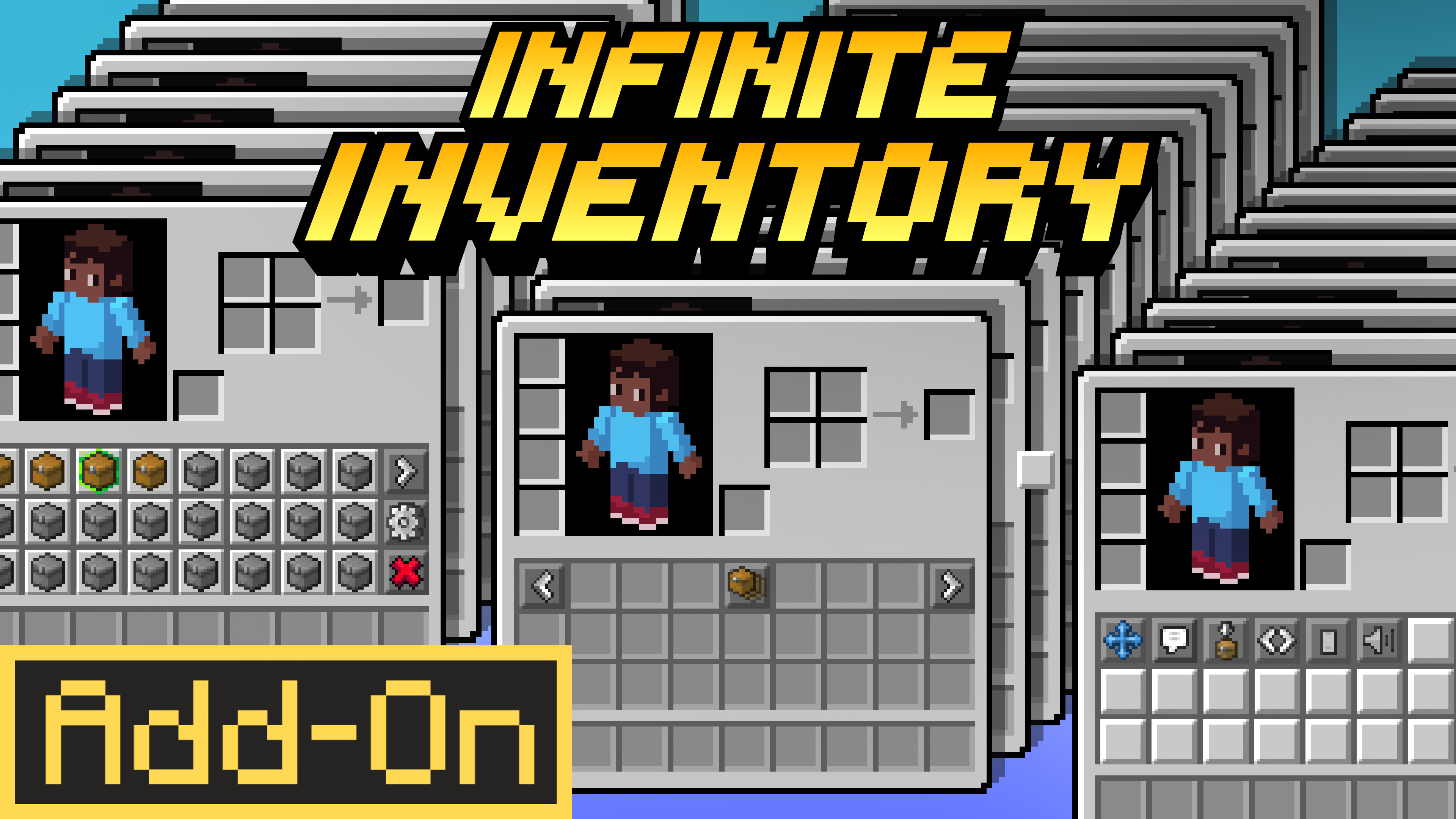
Getting Started
Section titled “Getting Started”When you join a world with the add-on for the first time, you get the Infinite Inventory Add-on book. Read it once for an in-game overview. You only receive the book on first join.
Open your inventory to see the new buttons in your inventory grid:
 Previous moves to the previous tab.
 Next moves to the next tab.
 Inventory Navigation shows your current tab number and opens the tab overview.
The label on each button updates to show the destination tab number, for example < Previous #3 or #4 Next >.
Inventory Tabs
Section titled “Inventory Tabs”Each player has up to 1,012 tabs, numbered #1 through #1012. Every tab stores its own 27 inventory slots. The hotbar is shared across tabs, so your hotbar items stay with you when you switch.
You start with 2 tabs and buy the rest with diamonds. See Unlocking Tabs for prices and how to pay. The in-game buttons call tabs “pages”, so the buttons you buy them with read Unlock Page and Page Unlocking.
Turn the Page Unlocking setting off to skip buying altogether. Every tab is then available, and tabs open up progressively: a new tab becomes usable once the previous one holds at least one item.
Switching Tabs
Section titled “Switching Tabs”Use the Previous and Next buttons in your inventory to cycle between your tabs. The Next button loops back to tab #1 once you reach your last one.
Navigation Menu
Section titled “Navigation Menu”Interact with the Inventory Navigation button to open a paginated overview of all 1,012 tabs.
| Icon | Meaning |
|---|---|
 Yellow Yellow | Unlocked tab. Tap to switch to it. |
 Gold Gold | Your current tab. |
 Unlock Page Unlock Page | The next tab you can buy. Tap to pay for it. |
 Gray Gray | Locked tab. Not yet unlocked. |
With Page Unlocking on, the grid shows your unlocked tabs, then the Unlock Page button in the next slot. Slots past that stay blank instead of showing a wall of locked tabs.
Use the same Previous/Next buttons to flip between pages of tabs. The  Settings button at the bottom opens the Settings menu.
Unlocking Tabs
Section titled “Unlocking Tabs”Tabs #1 and #2 are free. Every tab after that costs diamonds, bought one at a time from the Navigation Menu.
-
Put the diamonds you want to spend in your hotbar, or in the tab you are currently on.
-
Open the
Navigation Menu. -
Tap the
Unlock Page button. It sits in the slot right after your last unlocked tab and shows the price plus the diamonds you can spend.
The price rises the more tabs you own, and caps at a full stack.
| Tabs | Cost each |
|---|---|
| #1 to #2 | Free |
| #3 to #9 | 8 Diamonds |
| #10 to #24 | 16 Diamonds |
| #25 to #39 | 24 Diamonds |
| #40 to #54 | 32 Diamonds |
| #55 to #69 | 40 Diamonds |
| #70 to #84 | 48 Diamonds |
| #85 to #99 | 56 Diamonds |
| #100 to #1012 | 64 Diamonds |
Which Diamonds Count
Section titled “Which Diamonds Count”Only diamonds in your hotbar or on the tab you had open when you opened the menu can be spent. Diamonds stored on any other tab do not count. The Unlock Page button spells out both numbers, so You have 0 means your diamonds are sitting on a tab you are not standing in.
Move the diamonds to your hotbar first if the button says you cannot afford a tab you know you can.
Auto-Store on Pickup
Section titled “Auto-Store on Pickup”When  Auto-Store on Pickup is on (default), items you pick up while the active tab is full are sent to your other tabs automatically. The add-on stacks onto matching items first, then fills empty slots.
Once every tab you own is full, items drop on the ground. With Page Unlocking on, that is your cue to buy another tab. With it off, the add-on creates a new tab for you instead.
When the setting is off, items that do not fit follow normal Minecraft rules and stay on the ground.
Hotbar Controller
Section titled “Hotbar Controller”The optional  Hotbar Controller stores 9 hotbar layouts per player and switches between them with a single item.
When the Hotbar Controller setting is on (default), slot 9 of your hotbar is occupied by the controller item. The stack size shows the active hotbar number.
| Input | Action |
|---|---|
| Interact (right-click, use, tap) | Switch to the next hotbar (1 → 2 → … → 9 → 1). |
| Attack (left-click, attack) | Switch to the previous hotbar. |
The controller item is locked to your inventory and is kept on death. You can free up slot 9 by turning the Hotbar Controller off in Settings.
Settings
Section titled “Settings”Open the Navigation Menu and select Settings to toggle the add-on’s options. Each setting shows its current value in its name, for example Chat Messages: On. Interact with a setting to cycle to the next value.
| Setting | What it does |
|---|---|
| Auto-Store on Pickup | Routes picked-up items into other tabs when the active tab is full. |
 Chat Messages Chat Messages | Sends a chat message when an item is auto-stored into a different tab or dropped. |
 UI Sounds UI Sounds | Plays a click sound when you press an inventory button. |
 UI Type UI Type | Switches the inventory button layout between Classic (keyboard/controller) and Pocket (touch). |
 Hotbar Controller Hotbar Controller | Reserves slot 9 of your hotbar for the controller item. |
 Page Unlocking Page Unlocking | Decides whether tabs have to be bought with diamonds. |
 Move Inventory Buttons Move Inventory Buttons | Opens the button position menu. |
Page Unlocking
Section titled “Page Unlocking”- On (default) starts you with 2 tabs and makes you buy the rest with diamonds.
 Off gives you every tab for free. Tabs open up as you fill them, and your unlock progress is kept safe until you turn the setting back on.
Turning Page Unlocking back on can put tabs you filled while it was off out of reach. Nothing is deleted. Unlock those tabs again, or turn the setting off, to get to the items. The add-on tells you in chat how many tabs are affected.
UI Type
Section titled “UI Type”The Settings menu offers two button layouts.
- Classic places the Next button at the right edge of the top row. Best for keyboard and controller.
 Pocket moves the Next and Inventory Navigation buttons to the bottom-right of the inventory so they stay reachable on touch screens.
The default value matches your last-used input mode.
Move Inventory Buttons
Section titled “Move Inventory Buttons”The button position menu lets you drag the  Previous,
  Next,
Next,  Inventory Navigation, and Settings buttons into any of your 27 inventory slots. Lay the buttons out however you want, then press
  Save to commit the layout and return to Settings.
Persistent Data
Section titled “Persistent Data”Your tabs, hotbar layouts, unlocked tabs, settings, and button positions are saved per player and persist across deaths, sessions, server restarts, and dimension changes.
Reset Your Unlocked Tabs
Section titled “Reset Your Unlocked Tabs”To go back to the starting 2 tabs and keep everything else, run:
/shapescape:reset_page_unlock_progressCheats are not required, so this works in Marketplace worlds. Everything stored on tab #3 and above is dropped on the ground where you stand, one stack at a time. The pile follows you while it drains, and the reset picks up where it left off if you log out partway through.
The command only works with Page Unlocking on. With the setting off there is no unlock progress to reset.
Reset Your Data
Section titled “Reset Your Data”To wipe every stored tab, hotbar, setting, and button position for yourself, run:
/scriptevent shapescape:clearAllDataCommands
Section titled “Commands”/shapescape:reset_page_unlock_progress runs without cheats. Every script event below needs cheats enabled.
| Command | Effect |
|---|---|
/shapescape:reset_page_unlock_progress | Go back to the starting 2 tabs and drop everything stored above them. |
/scriptevent shapescape:inventory next | Switch to the next tab. |
/scriptevent shapescape:inventory previous | Switch to the previous tab. |
/scriptevent shapescape:hotbar next | Switch to the next hotbar layout. |
/scriptevent shapescape:hotbar previous | Switch to the previous hotbar layout. |
/scriptevent shapescape:clearAllData | Wipe all stored tabs, hotbars, settings, and button positions. |
- Keep your diamonds in the hotbar. Only hotbar diamonds and diamonds on the tab you had open can pay for a new tab.
- Buy early tabs first. Tabs #3 to #9 cost 8 Diamonds each, the cheapest they ever get.
- Turn Page Unlocking off for creative builds. Every tab is free and available with the setting off.
- Sort by tab. Use separate tabs for ores, food, building blocks, and tools so you can find everything fast.
- Pocket layout for touch. If your inventory buttons feel out of reach, set UI Type to Pocket in Settings.
- Customize button positions. Use Move Inventory Buttons to put your controls exactly where you want them.
- Buy a spare tab before a long mining trip. Auto-Store fills your tabs in order, and items drop once the last one is full.
- Watch the chat for auto-store messages. Chat Messages tell you where an item ended up when it gets routed to another tab.
- Switch hotbars for different jobs. Save one hotbar for combat, one for mining, one for building, and swap between them with the controller.